![Logo.png]](https://knowledgebase.mycomply.net/hs-fs/hubfs/Logo.png?height=40&name=Logo.png)
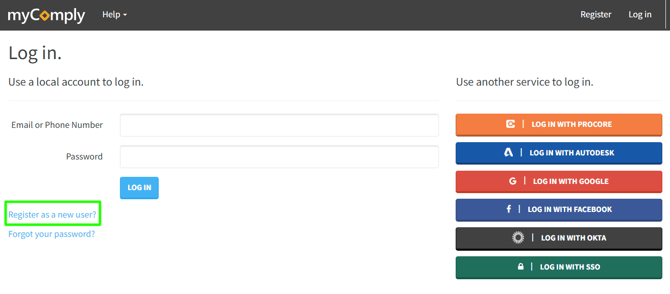
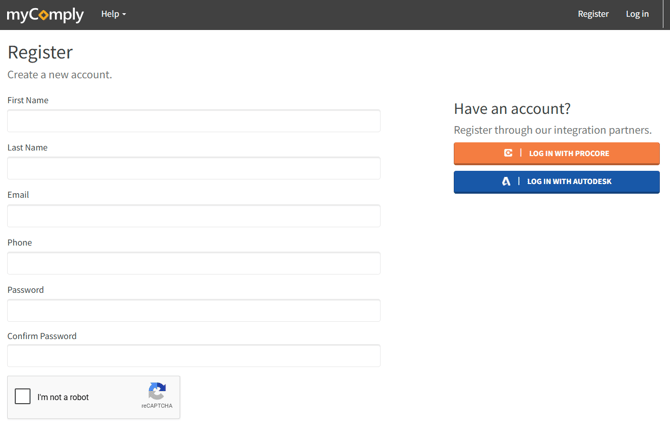
1) If you haven't already, create a user profile by navigating to mycomply.net, then clicking the Login button. There will be blue text to register as a new user.
2) If your company does not exist in myComply yet, you can click your name in the top right corner, then select "Add Company" in the dropdown.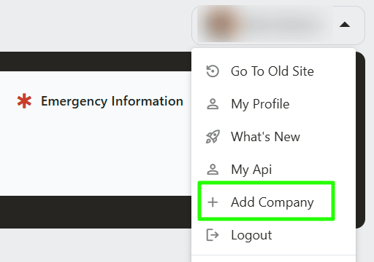
3) You will be prompted to choose a subscription tier and fill out your company details.
NOTE: If you have been invited to a project that includes a license code, do not proceed with this workflow. Instead, click the project join link sent to you via email. You will be able to create your company and apply the project's license code via that link.
Need assistance creating your company or joining a project? Please contact our support team at support@mycomply.net.