![Logo.png]](https://knowledgebase.mycomply.net/hs-fs/hubfs/Logo.png?height=40&name=Logo.png)
To get started with Badge issuing first make make sure you have the necessary hardware & software at hand:
- Either the myComply desktop app (Download Here) or the myComply mobile app (for Android or for Apple)
- A myComply USB programmer (not required if using a mobile device)
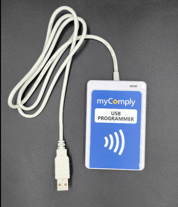
- Unassigned NFC badges, decals, or Bluetooth badges
Once you have everything ready, you will follow the steps below to begin issuing badges. Note: there are 2 types of badges/decals that can be issued, Company badges and Project badges, this article covers the Project workflows. (Learn more about company & project badges here).
Issue a Project Badge/Decal:
Note: When issuing a Bluetooth badge, ensure you turn it on before issuing (read Bluetooth Badge instructions here).
1) Navigate to Projects > Select the correct project > Click on Contractors:
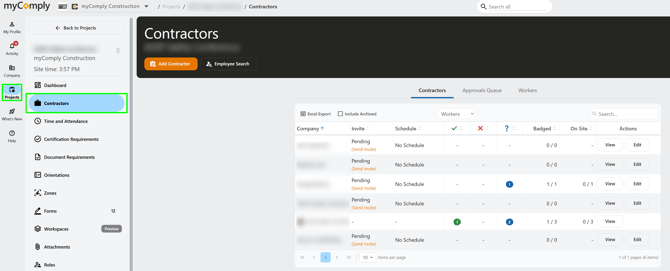
2) Navigate to the Approvals Queue, here you will see all workers that have joined the project and need to be approved by an admin. Follow the steps here to approve the worker before issuing a badge:
.png?width=670&height=170&name=Contractors%20(1).png)
3) Once the worker is approved, Click the Issue Badge button:.png?width=670&height=317&name=Contractors%20(2).png)
Note: if using the desktop app you should see this pop up, if you do not, ensure the USB programmer is correctly plugged in:
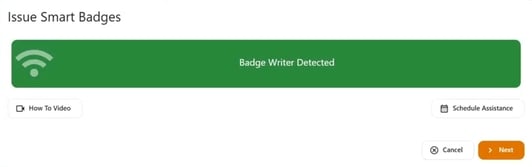
3.a) On desktop you will see the following video and instructions, the text will turn green and say "Badge successfully assigned to _____" when done:
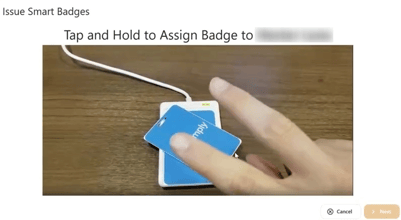
3.b) On mobile you will see the screens below prompting you to assign a badge and confirming success:
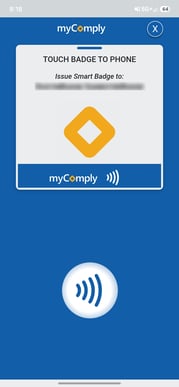
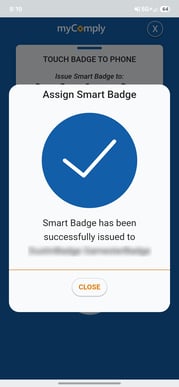
You can also issue badges from the Projects > Smart Badges tab which is great if you have multiple badges to issue at once and have already approved the workers. Keep in mind that this workflow does not allow for worker approvals.