![Logo.png]](https://knowledgebase.mycomply.net/hs-fs/hubfs/Logo.png?height=40&name=Logo.png)
Mobile Smart Bricks
1) Add a Mobile Smart Brick to your project. This brick can remain inactive and only be used in emergencies if desired.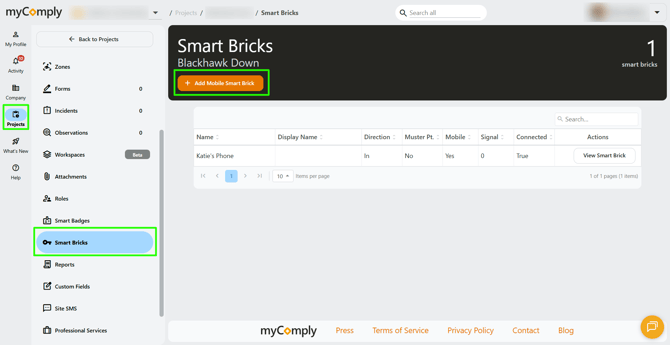
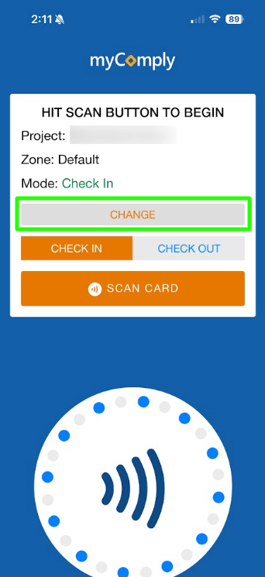
2) Once your Mobile Smart Brick is set up on your project, open it on your phone and tap "Change". Toggle "Use as muster point?" to "yes", then tap "Save".
.png?width=264&height=584&name=Home-Google-Drive-06-25-2026_02_16_PM%20(1).png)
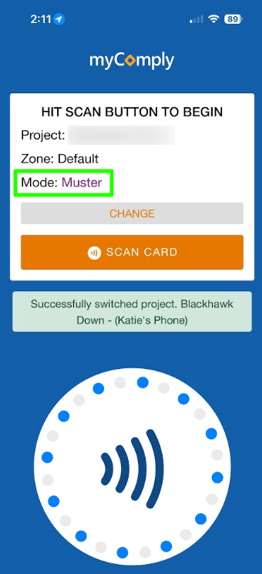
3) In the event of an evacuation, everyone gathered at the muster point can tap their badge on the Mobile Smart Brick.
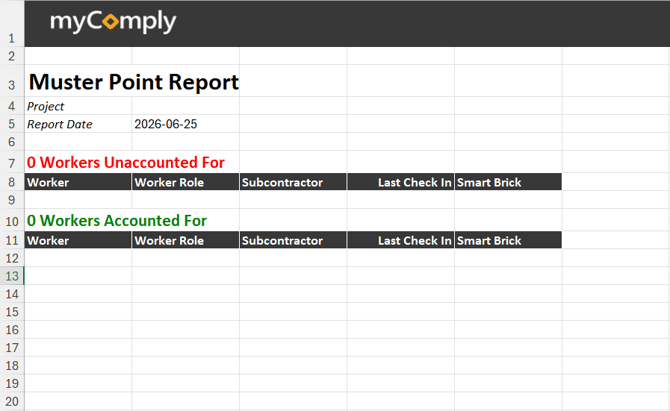
4) Once everyone at the muster point has tapped their badge, a project admin can run a Muster Point Report. This report can be found under the Project > Reports > Muster Point Report.
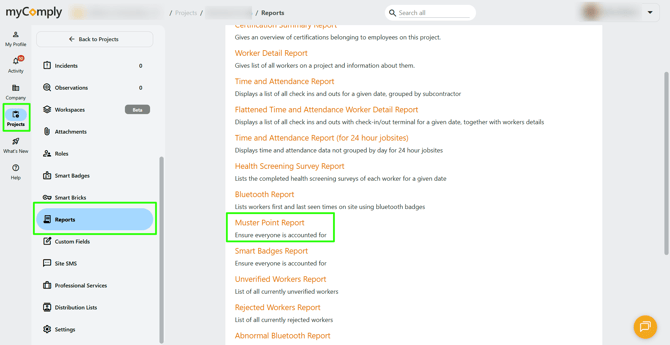
5) A Muster Point Report compares the list of everyone who was recorded on site that date vs. who badged into the muster point after the evacuation.
Smart Bricks
Regular Smart Bricks can also be used as muster points. For example, a Smart Brick may be placed in a site office or security shack that also serves as a muster point.
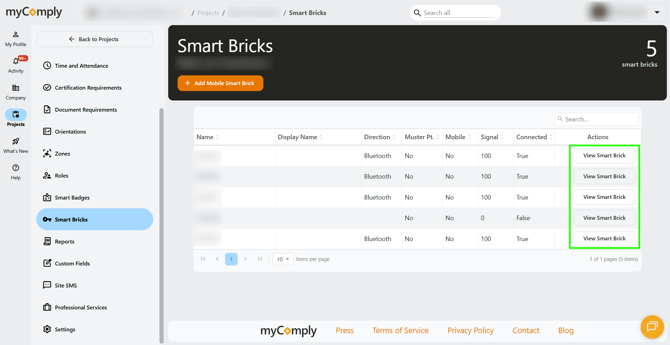
1) Navigate to the project, click on "Smart Bricks" in the left menu. Then click "View Smart Brick" next to the brick you'd like to convert to a muster point.
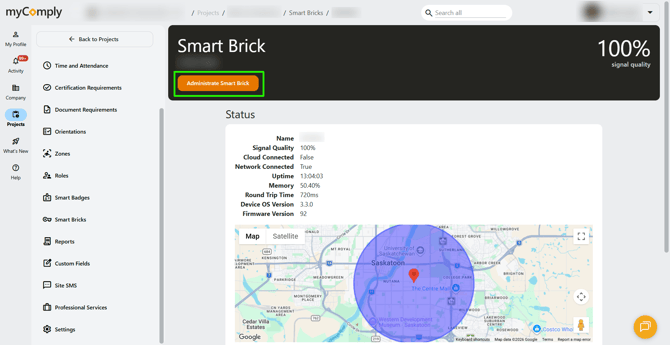
2) Click "Administrate Smart Brick".
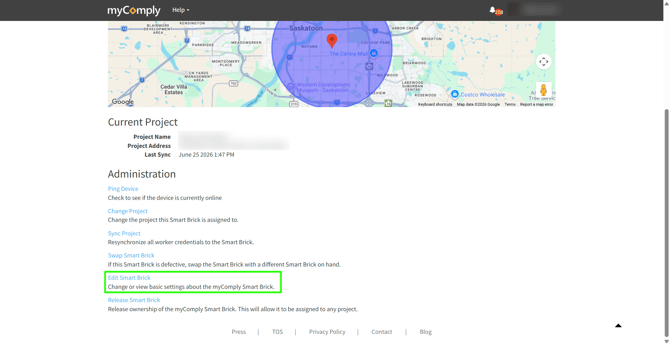
3) Scroll down, then select "Edit Smart Brick".
4) Set the brick direction to "check in" then toggle "Is Muster Point?" to "yes".
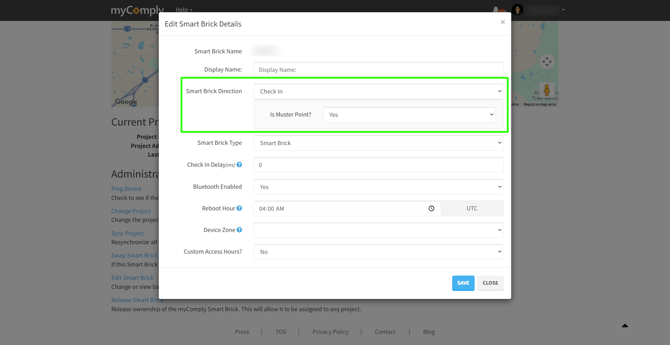
5) Click "Save".