![Logo.png]](https://knowledgebase.mycomply.net/hs-fs/hubfs/Logo.png?height=40&name=Logo.png)
Create a Workflow on a Form
-
In the menu for your Project, navigate to Forms and click "Forms" again to access your list:
-

Select the Form you want to create a Workflow for and navigate to Configuration > then to Workflows:

-
Click "Add Workflow" and select one of the 4 types of Triggers:
- A form is submitted.
- A submission is flagged.
- A form is submitted that contains missing workers.
- A required contractor did not submit a form by the end of time period.
- Click "Add Step" and select one of the 2 types of Steps:
- Email Results.
- Chose specific email address(es) to send the form submission to.
- Email Contractor.
- *Note: This only works if the Form already requires the submitter to choose a contractor before filling it out.
- Email Results.
- Below is a completed workflow, as an example:
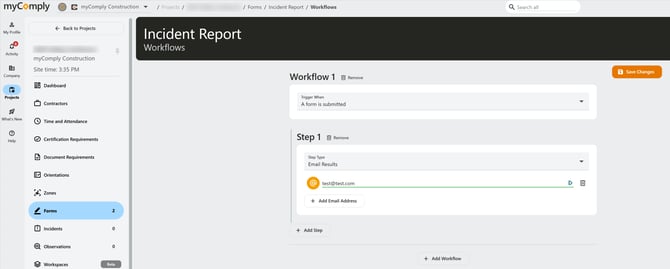
*Note: All settings for Triggers are created within the Form itself or within the Approval Settings.