![Logo.png]](https://knowledgebase.mycomply.net/hs-fs/hubfs/Logo.png?height=40&name=Logo.png)
To set up a Mobile Smart Brick on your project:
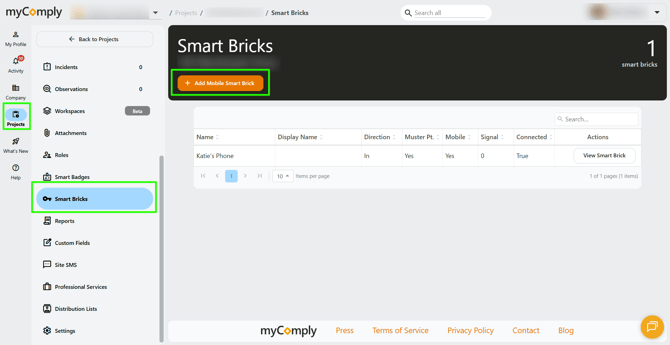
1) Navigate to your project, then click on "Smart Bricks" in the left navigation. Click the orange "+ Add Mobile Smart Brick" button at the top of your screen.
2) On your mobile device, download the Mobile Smart Brick App.
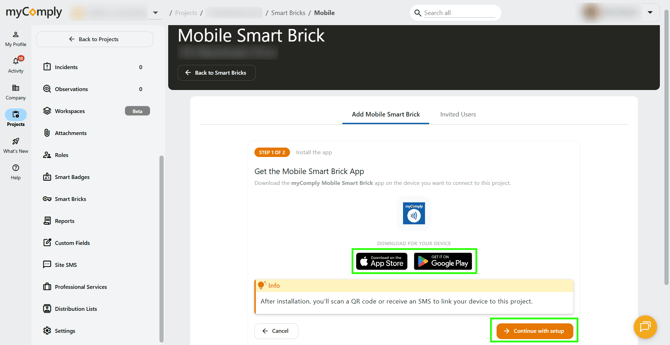
Note: myComply has two apps. One is the myComply dashboard in app form, while the other is specifically labelled "myComply Mobile Smart Brick".
3) Once you have the Mobile Smart Brick app downloaded on your mobile device, click "Continue with setup".
4) Name the Mobile Smart Brick, then click "Generate QR Code".
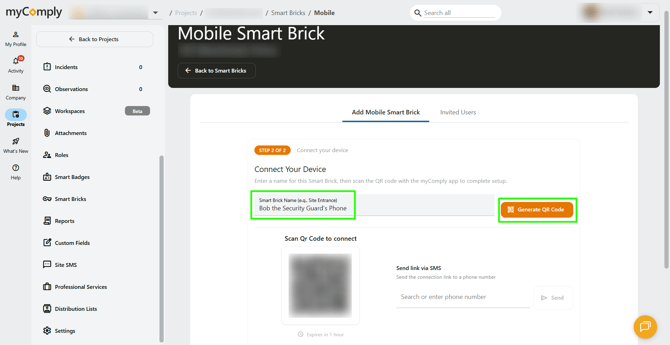
You can also send the connection link via SMS to the mobile phone number of a team member.
5) In the app, tap to scan the provided QR code. This will connect your phone to your project. You will see a success message, and you will see the project name now listed on your phone.
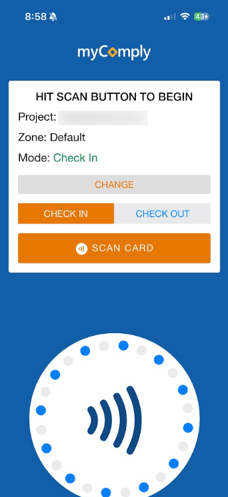
When workers are badging in/out of the project, be sure to set the correct Smart Brick direction (check in vs. check out). You can also adjust a Mobile Smart Brick to become a muster point. A project can have an unlimited number of Mobile Smart Bricks. Some useful locations may include:
- Safety Shack
- Security Guards
- Vehicle Gates
- Offices